Best Audio Settings for Marathon
Marathon’s soundscape is atmospheric, but for survival, you need clarity. Here is how to configure your in-game audio and EQ to track Runners and avoid wipes.
Marathon’s audio engine is built on “material responses”—meaning every surface has a distinct acoustic signature. While this creates an immersive sci-fi atmosphere, the default settings prioritize cinematic weight over tactical information. In an extraction shooter, immersion without information is a death sentence. (To pair these settings with the right hardware, check out our Best Headsets for Marathon guide).
Before adjusting your in-game sliders, ensure your PC or console isn’t double-processing the signal. Disable all OS-level spatial sound (Windows Sonic, Dolby Atmos for Headphones) unless you specifically find the in-game HRTF lacking. Bungie typically handles spatial positioning internally; stacking external layers smears the directional cues they’ve spent years tuning.
In-Game Audio Settings
Marathon
Optimal Audio Configuration
 source: goopfinder.com
Audio Settings
EQ Tuning
Optimizing SFX vs. Music
The SFX slider is your survival slider. It controls the “loud” footsteps, reload sounds, and ability charge-ups that reveal enemy positions. Many players during the Server Slam reported that the atmospheric music, while excellent, frequently buried the sound of a Runner approaching on metal grating. Drop Gameplay Music to 20% or lower. You’ll still get the tonal shifts during extraction, but you won’t lose a duel because a synth pad masked a boot click.
EQ Settings for Runner Detection
Marathon does not currently feature a built-in EQ. You must handle frequency adjustments at the hardware or software level (SteelSeries GG, Razer Synapse, or EQ APO).
The Footstep Frequency: Boot contacts on metal and synthetic surfaces live in the 1kHz to 3kHz range. Boosting this band by +3 to +4 dB makes directional cues “pop” against the ambient hum of the colony.
The Mud Zone: Ambient ship noise and low-frequency rumbles sit in the 100Hz to 250Hz range. Pulling this down by 2 or 3 dB cleans up the soundscape, preventing explosions from lingering too long in your earcups and masking subsequent footsteps.
Spatial Audio: Internal vs. External
Bungie’s internal HRTF is designed for stereo headphones. If you enable Windows Sonic or Dolby Atmos on top of it, you are effectively applying a second virtual room over the one the game has already rendered. This causes “ghosting”—where a sound sounds like it’s coming from two places at once.
Run the game in Stereo / Headphones mode and kill all external processing first. If you find the vertical audio (sounds above/below you) is still muffled, only then should you experiment with OS-level spatial sound.
Headset Recommendations
To get the most out of these settings, you need hardware that can actually reproduce the separation.
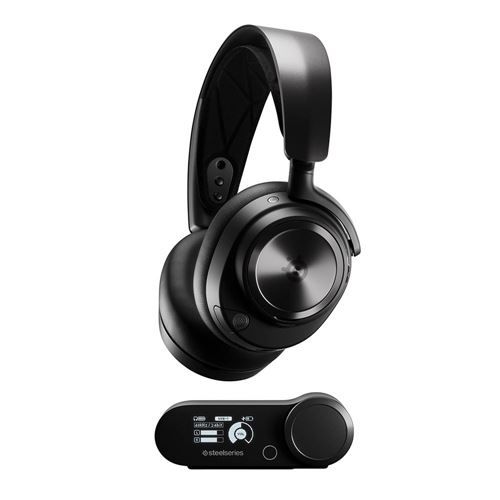
Best overall: SteelSeries Arctis Nova Pro Wireless. Use the Sonar app to create a custom PEQ profile based on the numbers above. The 40mm drivers are surgically precise for directional cues.
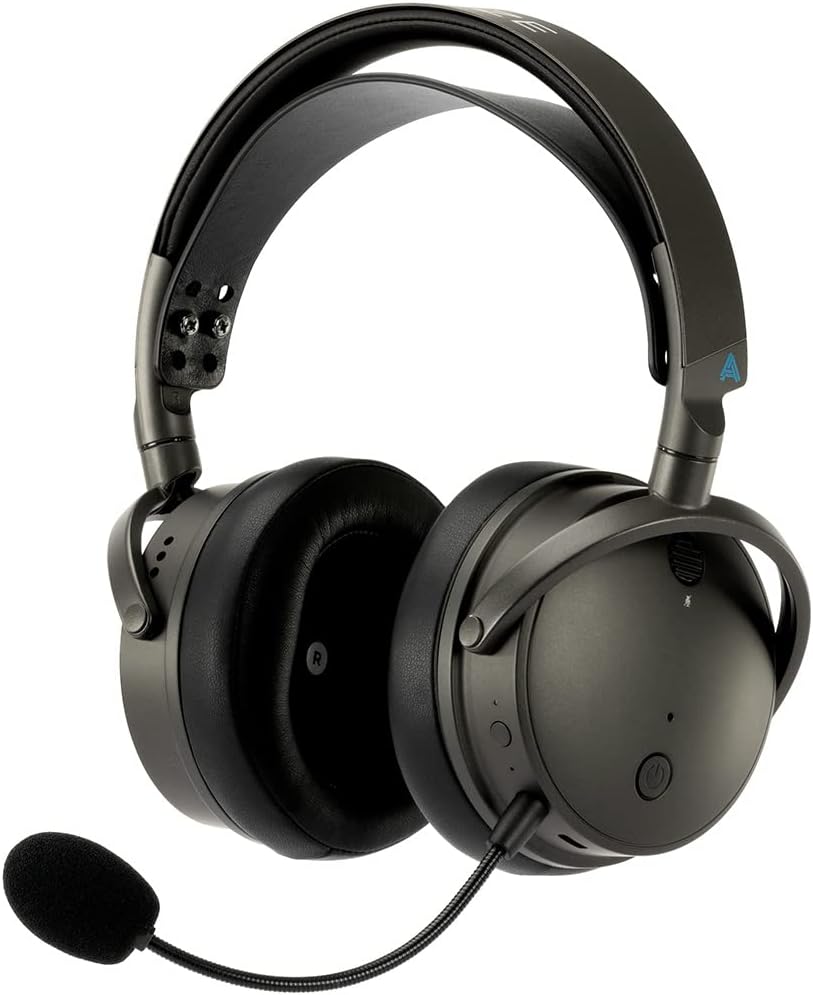
Best for raw detail: Audeze Maxwell. The 90mm planar drivers have the speed necessary to track multiple Runners moving on different surfaces simultaneously without the audio “smearing.”
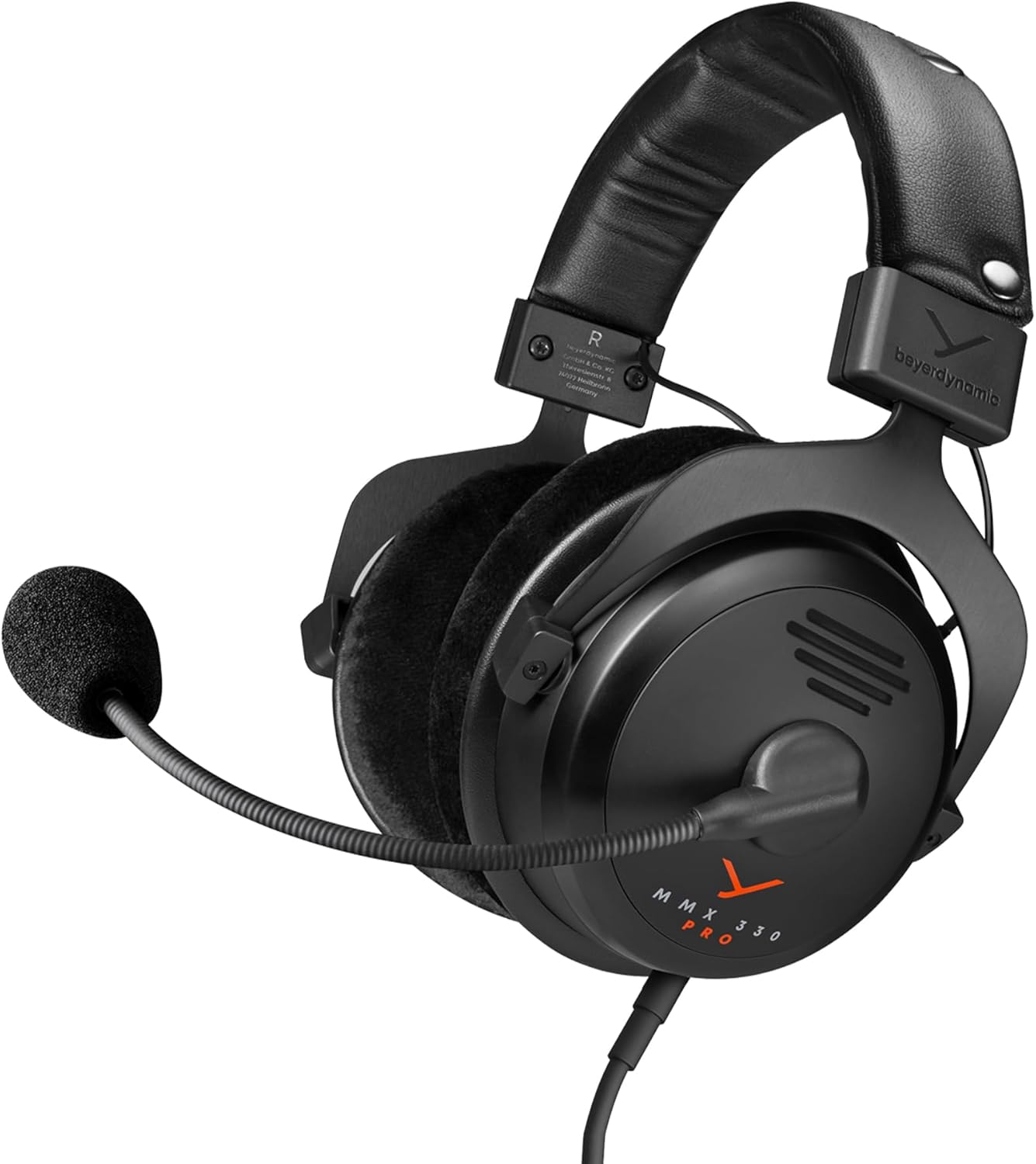
Best soundstage: Beyerdynamic MMX 300 Pro. If you want the most natural feeling of space without software gimmicks, this is the analog king.
Recommended Hardware
As an Amazon Associate, we earn from qualifying purchases. This helps support our detailed gear research and guide creation at no extra cost to you.
Bottom Line
Set your Output to Headphones, drop Music Volume to 20%, and boost your 1-3kHz mids. Marathon’s “material responses” are a weapon if you can hear them. If you leave your settings on default, you’re playing at a disadvantage compared to every Runner who bothered to clean up their audio.

Richard Scott
Headset Expert & Web Developer
Web developer and lifelong gamer. Spends too much time on golf, hockey, and finding the right headset. Lives with a dog who has no opinions on audio quality.